

Windows 11 Pro 21H2 Build 22000.675 (No TPM Required) With Office 2021 Pro Plus (x64) Multilingual Pre-Activated
iNFO:
Medicine included
size:
format:rar/exe/iso
languages:multi, Arabic, English, German, Greek, French, Spanish, Italian, Portuguese-Portuguese, Portuguese-Brazil, Turkish, Bulgarian, Etc!
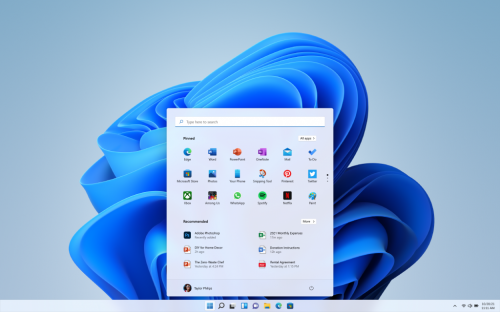
Windows 11 will receive a completely new design. Microsoft clearly needs a good reason to reverse its past claims and still ditch Windows 10 by introducing a new operating system number. And a completely new design is great for that. The Redmond giant has long been preparing a redesign for an update with the code name Sun Valley (“Sun Valley”) – apparently, under this naming it was Windows 11. The Sun Valley project flashed on the network for a long time – Microsoft regularly disclosed details of the new interface style, insiders shared the unknown previously information, and popular designers in their circles drew realistic concepts based on all this data.
Operating System:
– Processor: 1 gigahertz (GHz) or faster.
– RAM: 2 gigabyte (GB).
– Free space on hard disk: 40 gigabytes (GB).
– Graphics card: DirectX 9 graphics device or a newer version.
– Additional requirements to use certain features.
– To use touch you need a tablet or monitor that supports multitouch.
– To access the Windows store to download and run apps, you need an active Internet connection and a screen resolution of at least 1024 x 768 pixels
Install Notes:
– Install a USB bootable creation software (such as Rufus) on your Windows computer.
– Plug in a USB flash drive (at least 8GB of free space) to your computer.
– Open the USB bootable creation software, and select the ISO image file of Windows 11, and start the process.
– Plug the bootable USB into a system where you want to install Windows 11.
– Restart the computer.
– Press the boot device menu key and select USB to boot first.
– Select USB device and start the Windows 11 installer.
************************************************** ***************
Hinweise zur Installation:
– Installieren Sie auf Ihrem Windows-Computer eine Software zur Erstellung eines bootfähigen USB-Sticks (z. B. Rufus).
– Schließen Sie ein USB-Flash-Laufwerk (mit mindestens 8 GB freiem Speicherplatz) an Ihren Computer an.
– Öffnen Sie die Software zur Erstellung von USB-Startdateien, wählen Sie die ISO-Image-Datei von Windows 11 aus und starten Sie den Vorgang.
– Stecken Sie den bootfähigen USB-Stick in ein System, auf dem Sie Windows 11 installieren möchten.
– Starten Sie den Computer neu.
– Drücken Sie die Menütaste für das Startgerät und wählen Sie USB, um zuerst zu starten.
– Wählen Sie das USB-Gerät und starten Sie das Windows 11-Installationsprogramm.
Screenshots
Download : Nitroflare / Rapidgator
Scrivi un commento